Event Processing Rate Calculator
API & BackendEnter your worker count, per-event processing time, and total event volume to calculate pipeline throughput and queue drain time. Works with Kafka, SQS, RabbitMQ, and any worker pool.
Last updated: April 2026
This calculator is designed for real-world usage based on typical engineering scenarios and publicly available documentation.
The event processing rate calculator helps you size consumer pools, predict queue drain times, and avoid backlog build-up in event-driven architectures. Whether you're using Kafka, RabbitMQ, AWS SQS, or a custom worker pool, the same core formula applies: multiply your worker count by each worker's per-second capacity to get total throughput in events per second. This tool is used by backend engineers, data engineers, and SREs designing or troubleshooting stream processing pipelines. Enter the number of workers, how long each event takes to process, and your total event volume to instantly see throughput and the time needed to drain the queue. Common scenarios include right-sizing a Kafka consumer group before a traffic spike, estimating how long a nightly batch will take to complete, and calculating the minimum number of Lambda concurrency slots needed to keep pace with an SQS queue. If your throughput approaches your ingestion rate, even brief spikes will cause backlog accumulation. Use this calculator to maintain 20–30% headroom so your pipeline can absorb bursts without falling behind.
How to Calculate Event Processing Rate
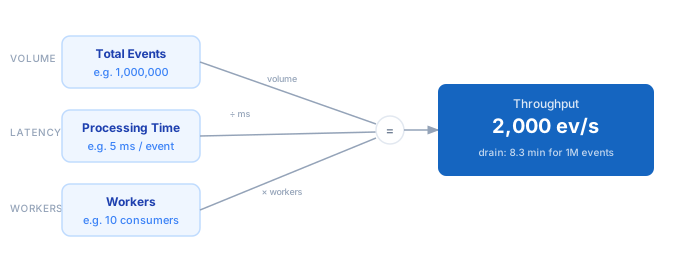
1. Enter the number of parallel workers — Kafka consumers, Lambda concurrency slots, thread pool size, or goroutines. 2. Enter the average processing time per event in milliseconds, including all I/O, computation, and acknowledgement latency. 3. Enter the total number of events to process, or use throughput alone to evaluate steady-state capacity. 4. The calculator computes throughput: workers × (1000 ÷ processing_time_ms) = events per second. 5. It then divides total events by throughput to show you the estimated queue drain time.
Formula
Throughput (ev/s) = Workers × (1000 ÷ Processing Time ms)

Queue Drain Time  = Total Events ÷ Throughput (ev/s)

Workers           — parallel consumers, threads, Lambda invocations, or goroutines
Processing Time   — average wall-clock time per event (ms), including I/O and ack latency
Total Events      — total queue depth or batch size to drain
Example Event Processing Rate Calculations
Example 1 — Kafka consumer group draining 1M events
Workers: 10 consumers  |  Processing time: 5 ms/event

Throughput = 10 × (1000 ÷ 5) = 2,000 ev/s

Drain time = 1,000,000 ÷ 2,000 = 500 sec  →  8.3 minutes
Example 2 — SQS + Lambda draining 500K events
Workers: 50 (Lambda concurrency)  |  Processing time: 200 ms/event

Throughput = 50 × (1000 ÷ 200) = 250 ev/s

Drain time = 500,000 ÷ 250 = 2,000 sec  →  33.3 minutes
Example 3 — Redis stream consumer pool with 10M events
Workers: 4 consumers  |  Processing time: 2 ms/event

Throughput = 4 × (1000 ÷ 2) = 2,000 ev/s

Drain time = 10,000,000 ÷ 2,000 = 5,000 sec  →  83.3 minutes
Tips to Maximise Event Processing Throughput
- › Keep utilisation below 80% — when ingestion rate approaches throughput capacity, any traffic spike causes backlog accumulation that takes hours to recover.
- › Measure actual processing time end-to-end including network round trips, DB writes, and ack latency — not just CPU time. I/O typically dominates.
- › Scale workers horizontally rather than vertically. Doubling workers doubles throughput linearly; reducing processing time by half achieves the same.
- › For Kafka, ensure partition count ≥ worker count — Kafka limits effective parallelism to the number of partitions, regardless of how many consumers you add.
- › Use the <a href="/calculators/worker-queue-throughput-calculator">Worker Queue Throughput Calculator</a> to model backlog growth when ingestion rate exceeds your current throughput.
- › Monitor consumer lag (Kafka) or queue depth (SQS) as your primary SLI — set an alert when lag exceeds your acceptable drain time budget.
Notes
- › Results are estimates and may vary based on actual usage.
- › Always validate against your production environment.