File Upload Time Calculator
PerformanceEnter your file size and upload speed to instantly estimate how long your upload will take. Accounts for real-world protocol overhead so results match what you see in practice.
Last updated: April 2026
This calculator is designed for real-world usage based on typical engineering scenarios and publicly available documentation.
The file upload time calculator tells you exactly how long a transfer will take before you start it — no surprises mid-session. Knowing the upload duration upfront helps you schedule large transfers outside business hours, set realistic expectations for clients receiving files, and diagnose whether a slow upload is a network problem or simply the expected time for that file size. Developers use this tool when sizing timeout values for file-upload API endpoints, planning S3 or GCS put-object operations, and estimating CI artifact push times. DevOps engineers reach for it when capacity-planning storage pipelines and validating that upload SLAs are achievable on the available bandwidth. The underlying formula is straightforward: convert the file size from bytes to bits, divide by the upload speed in bits per second, and add a protocol overhead factor to account for TCP/IP framing, TLS handshake bytes, and HTTP multipart boundaries. Typical real-world overhead runs 5–15%; the default of 10% is a safe conservative estimate for most HTTPS uploads. If you are uploading many files in parallel, each stream shares the same uplink. In that scenario, divide your total bandwidth by the number of concurrent streams before entering the per-stream speed here. Use the <a href="/calculators/throughput-calculator">Throughput Calculator</a> to model concurrent transfer capacity.
How to Calculate File Upload Time
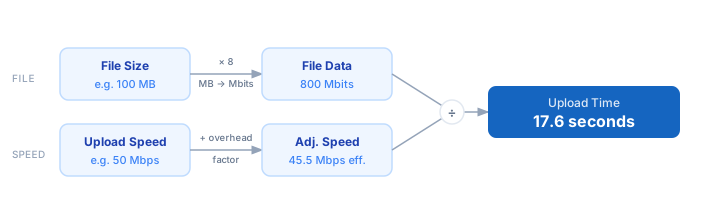
1. Enter your file size in megabytes (MB). Convert from GB by multiplying by 1,024, or from KB by dividing by 1,024. 2. Enter your upload speed in Mbps. Run a speed test to get your real upload speed — advertised speeds are often theoretical maximums. 3. Set the protocol overhead percentage. Leave it at 10% for standard HTTPS uploads; raise it to 15% for TLS-heavy or highly fragmented transfers. 4. The calculator converts file size to megabits (×8), divides by upload speed (Mbps), and multiplies by the overhead factor. 5. The result is displayed in the most readable unit — seconds for small files, minutes for medium files, and hours for large transfers.
Formula
Upload Time (s) = (File Size (MB) × 8) ÷ Upload Speed (Mbps) × (1 + Overhead ÷ 100)

File Size     — file size in megabytes (MB); 1 GB = 1,024 MB
Upload Speed  — upload throughput in megabits per second (Mbps)
Overhead      — protocol overhead percentage (TCP/TLS/HTTP headers, typically 5–15%)
× 8           — converts megabytes to megabits (1 byte = 8 bits)
Example File Upload Time Calculations
Example 1 — Photo gallery backup on home broadband
File size:     100 MB  ×  8  =  800 Mbits
Upload speed:  25 Mbps
Overhead:      10%

Time = 800 ÷ 25 × 1.10  =  35.2 seconds
Example 2 — 2 GB video upload on office fibre (100 Mbps uplink)
File size:   2,048 MB  ×  8  =  16,384 Mbits
Upload speed:  100 Mbps
Overhead:       10%

Time = 16,384 ÷ 100 × 1.10  =  180.2 seconds  →  3.0 minutes
Example 3 — 500 MB dataset on a 5 Mbps mobile hotspot
File size:     500 MB  ×  8  =  4,000 Mbits
Upload speed:  5 Mbps
Overhead:      15%  (higher for mobile network variability)

Time = 4,000 ÷ 5 × 1.15  =  920 seconds  →  15.3 minutes
Tips to Speed Up File Uploads
- › Compress files before uploading. Reducing a 500 MB archive to 300 MB with gzip or zstd cuts upload time by 40%. Use the <a href="/calculators/compression-ratio-calculator">Compression Ratio Calculator</a> to estimate savings before compressing.
- › Use chunked / multipart uploads for files over 100 MB. Libraries like tus or the AWS S3 multipart API resume interrupted uploads and can saturate your bandwidth more effectively than a single TCP stream.
- › Upload during off-peak hours. Home and office broadband is often 20–50% faster at night or weekends when contention on the local loop is lower.
- › Close other bandwidth-heavy applications before starting a large upload. A background video call or OS update can silently cap your available uplink to a fraction of its rated speed.
- › Pick a storage region close to your physical location. Uploading to a data center in the same country typically yields 10–30% better throughput than uploading across continents due to fewer TCP retransmits.
- › For server-to-server transfers, use iperf3 to measure true available bandwidth rather than relying on a consumer speed test — ISP speed tests route to optimised endpoints that may not reflect your route to the target server.
Notes
- › Results are estimates and may vary based on actual usage.
- › Always validate against your production environment.