Compression Ratio Calculator
Data & FormatsEnter your original and compressed file sizes to instantly calculate the compression ratio and space savings. Works with ZIP, gzip, Brotli, zstd, and any other format.
Last updated: April 2026
This calculator is designed for real-world usage based on typical engineering scenarios and publicly available documentation.
The compression ratio calculator tells you exactly how effective a compression algorithm is by comparing original and compressed file sizes. Enter both sizes in the same unit — bytes, KB, MB, or GB — and you get the ratio, space savings percentage, and total size reduction. Compression ratio matters whenever storage cost or transfer time is on the line. DevOps engineers use it to evaluate gzip vs Brotli for web assets. Data engineers compare zstd vs Snappy for columnar storage. Backend teams measure payload compression before and after adding Content-Encoding: gzip to an API response. A ratio of 4:1 means the compressed file is four times smaller than the original — one quarter the storage space and one quarter the bandwidth cost. Typical ratios range from 1.5:1 for already-compressed media files to 10:1 or higher for repetitive text like logs or JSON. This calculator works for any lossless or lossy format. For lossy compression (JPEG, MP3, H.264), the ratio reflects file-size reduction but not quality trade-offs — factor in quality settings separately.
How to Calculate Compression Ratio
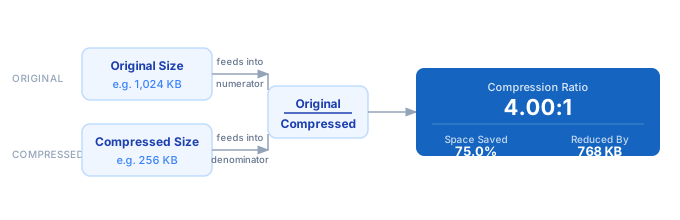
1. Measure the original file size before compression — in bytes, KB, MB, or GB. 2. Compress the file using your chosen algorithm (gzip, zstd, Brotli, etc.). 3. Measure the compressed file size in the same unit. 4. Divide the original size by the compressed size to get the compression ratio. 5. Subtract the compressed size from the original and divide by the original to get space savings percentage.
Formula
Compression Ratio  = Original Size ÷ Compressed Size
Space Savings (%)  = (Original Size − Compressed Size) ÷ Original Size × 100
Size Reduced By    = Original Size − Compressed Size

Original Size    — file size before compression (any consistent unit)
Compressed Size  — file size after compression (same unit)
Ratio            — expressed as X:1; higher means better compression
Example Compression Ratio Calculations
Example 1 — gzip on a JSON API response
Original:    48,320 bytes (47.2 KB uncompressed JSON)
Compressed:   4,210 bytes (4.1 KB with gzip level 6)

Compression Ratio  = 48,320 ÷ 4,210  = 11.48:1
Space Savings      = (48,320 − 4,210) ÷ 48,320 × 100  = 91.3%
Size Reduced By    = 44,110 bytes saved per response
Example 2 — zstd on a CSV data export
Original:   512 MB (raw CSV log file)
Compressed:  68 MB (zstd level 3)

Compression Ratio  = 512 ÷ 68  = 7.53:1
Space Savings      = (512 − 68) ÷ 512 × 100  = 86.7%
Size Reduced By    = 444 MB saved — cuts S3 storage bill by 86.7%
Example 3 — JPEG image (already lossy-compressed)
Original:   2,400 KB (raw PNG screenshot)
Compressed:   180 KB (JPEG at 80% quality)

Compression Ratio  = 2,400 ÷ 180  = 13.33:1
Space Savings      = (2,400 − 180) ÷ 2,400 × 100  = 92.5%
Size Reduced By    = 2,220 KB — significant page-weight saving for web delivery
Tips to Maximise Compression Efficiency
- › Match the algorithm to the data type: zstd and gzip excel on text and JSON; Snappy is faster but lower ratio for binary; Brotli delivers the best ratios for static web assets.
- › Pre-sort or pre-group repetitive data before compressing — columnar storage formats like Parquet exploit sorted runs to achieve dramatically higher ratios on numeric data.
- › Compress at the API gateway level with Content-Encoding: gzip or br rather than in application code — you get compression for free on all responses without touching business logic.
- › Avoid double-compressing. Files already in ZIP, JPEG, MP4, or other compressed formats gain almost nothing from a second pass and waste CPU. Check the ratio first.
- › For streaming pipelines, benchmark zstd level 1–3 vs gzip level 1 — zstd at level 1 typically beats gzip level 6 in both speed and ratio, cutting both latency and storage cost.
- › Log actual compression ratios per content type in production. A sudden drop in ratio often signals a data format change — like a field switching from text to base64-encoded binary — that should be investigated.
Notes
- › Results are estimates and may vary based on actual usage.
- › Always validate against your production environment.