RAID Capacity Calculator
GeneralEnter your disk count, disk size, and RAID level to instantly calculate usable storage capacity and fault tolerance. Covers RAID 0, 1, 5, 6, and 10.
Last updated: April 2026
This calculator is designed for real-world usage based on typical engineering scenarios and publicly available documentation.
A RAID capacity calculator tells you exactly how much usable storage you get from a set of drives in a given RAID configuration — accounting for mirroring overhead, parity drives, and striping. Raw disk capacity is never what you actually get: RAID 5 gives you (n−1) disks of usable space, RAID 6 gives you (n−2), and RAID 1 gives you just one disk's worth no matter how many drives you add. Storage administrators, homelab builders, and data-center engineers use this tool before purchasing hardware to size arrays correctly for backup repositories, VM datastores, NAS builds, and database volumes. Getting the math wrong costs real money — either you under-provision and run out of space, or you over-provision and waste thousands on unnecessary drives. Raid efficiency and fault tolerance are always a trade-off. RAID 0 maximises capacity with zero redundancy. RAID 5 balances capacity and single-disk fault tolerance, making it the most common choice for general-purpose NAS builds. RAID 6 adds a second parity disk for two-disk fault tolerance, which matters when rebuilding large drives takes days and the probability of a second failure during rebuild is non-trivial. RAID 10 trades 50% of raw capacity for the best write performance and the highest rebuild speed. This calculator uses raw disk capacity. In practice, formatted usable space is slightly less due to filesystem overhead (typically 1–5%). For SSDs, also factor in over-provisioning. Use the output here as your planning number and add a 10–15% buffer for growth.
How to Calculate RAID Capacity
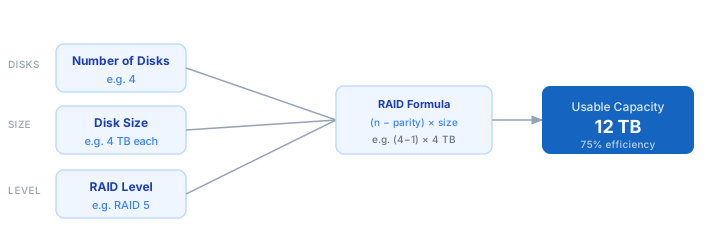
1. Choose your RAID level — RAID 0, 1, 5, 6, or 10 — which determines how parity and mirroring overhead is calculated. 2. Enter the number of physical disks in the array. Each RAID level has a minimum disk count. 3. Enter the capacity of each individual disk in terabytes (all disks must be the same size for maximum efficiency). 4. The calculator subtracts parity and mirror overhead using the formula for your selected RAID level. 5. Usable capacity, storage efficiency percentage, and fault tolerance are displayed instantly.
Formula
RAID 0  → Usable = n × size              (no redundancy)
RAID 1  → Usable = size                  (all disks mirror one)
RAID 5  → Usable = (n − 1) × size        (1 parity disk)
RAID 6  → Usable = (n − 2) × size        (2 parity disks)
RAID 10 → Usable = (n ÷ 2) × size        (50% mirroring)

n     — number of physical disks
size  — capacity of each disk (TB)
Parity disks do not store user data; they store error-correction information.
Example RAID Capacity Calculations
Example 1 — RAID 5 with 4 × 4 TB drives
Raw capacity:  4 disks × 4 TB = 16 TB
Parity disks:  1 (RAID 5 formula: n − 1)
Usable:        (4 − 1) × 4 TB = 12 TB
Efficiency:    12 ÷ 16 = 75%
Fault tolerates 1 disk failure. Minimum 3 disks required.
Example 2 — RAID 6 with 6 × 8 TB drives (large NAS)
Raw capacity:  6 disks × 8 TB = 48 TB
Parity disks:  2 (RAID 6 formula: n − 2)
Usable:        (6 − 2) × 8 TB = 32 TB
Efficiency:    32 ÷ 48 = 66.7%
Fault tolerates 2 simultaneous disk failures. Safer for large drives with long rebuild times.
Example 3 — RAID 10 with 8 × 2 TB drives (high-performance VM host)
Raw capacity:  8 disks × 2 TB = 16 TB
Mirror overhead: 50% (RAID 10 formula: n ÷ 2)
Usable:        (8 ÷ 2) × 2 TB = 8 TB
Efficiency:    8 ÷ 16 = 50%
Fault tolerates 1 disk per mirrored pair. Best write throughput of all RAID levels.
Tips for Choosing the Right RAID Level
- › Use RAID 5 for general-purpose NAS builds (file shares, backups) with 4–6 drives — it gives 75%+ efficiency with acceptable single-disk fault tolerance.
- › Prefer RAID 6 over RAID 5 when using drives larger than 4 TB. Rebuilding a 12 TB drive takes 12–24 hours, and the probability of a second failure during that window is significant.
- › RAID 10 is the right choice for databases and VM datastores where write IOPS matter more than capacity. Pair it with the <a href="/calculators/disk-iops-calculator">Disk IOPS Calculator</a> to size your storage correctly.
- › Always mix disks of the same size. In a mixed array, the controller uses the smallest disk's capacity for all slots — larger disks waste their extra space.
- › RAID is not a backup. A RAID 5 or RAID 6 array will not protect against accidental deletion, ransomware, or controller failure. Follow the 3-2-1 backup rule separately.
- › Add 10–15% headroom above your target usable capacity. Most filesystems degrade in performance when more than 80–85% full, and RAID rebuilds require free space.
Notes
- › Results are estimates and may vary based on actual usage.
- › Always validate against your production environment.